Author: Cloud Storage Product Team - Nitya Gupta, Prabu Arjunan, Sagar Gupta, Shmuel Danan
FSx for NetApp ONTAP is often the backbone for critical applications. Managing FSx for ONTAP often requires accessing the AWS console, as well as the ONTAP CLI, which might make it a bit cumbersome to manage, especially at scale. Engineers bounce between the AWS Console, internal docs, ONTAP CLI and their IDE just to understand how file systems, SVMs, and volumes are configured. That overhead quietly consumes entire days.
The NetApp FSx for ONTAP VS Code Extension changes that. It brings FSx resource discovery, ONTAP CLI, Co-pilot integration and inspection directly into VS Code, letting DevOps engineers see and work with storage in the same place they write and review code.
Meet Alex, an AWS DevOps Engineer. Here's how his workflow transformed.
The Traditional Approach
Alex's task seems straightforward: verify configuration across FSx file systems supporting payments and reporting services. In reality, it consumes most of his day.
- Resource Discovery: The day begins with navigating the AWS Console to locate file systems across regions and accounts. Alex manually inspects capacity, throughput, and SVMs, tracking findings in a spreadsheet—a slow, multi-tab process.
- Configuration Audit: Next, he verifies export policies, snapshot schedules, and network settings for each volume. The reliance on manual data entry across numerous tabs significantly increases the risk of error. To do that he needs to jump back and forth between ONTAP CLI, his IDE and AWS console.
- Reconciliation & Reporting: Finally, he consolidates the data to identify compliance gaps and generate a summary. While necessary, this manual workflow consumes hours of valuable time on administrative tasks rather than core engineering.
The New Way: Minutes in VS Code
With the FSx for ONTAP VS Code Extension, Alex's workflow becomes unified and efficient:
Step 1 (5 min): Alex installs the extension and authenticates with AWS credentials. A hierarchical tree view appears in VS Code showing file systems, SVMs, and volumes—no console navigation needed.
Step 2 (10–15 min): He clicks through the tree to inspect configurations directly in the editor: capacity, SVM details and throughput. All details appear in a single interface instead of scattered across console tabs. While ONTAP CLI is available for any file system in a click of a button, using the extension, Alex also uses the Co-pilot integration to pull all required information using an easy prompt interface.
Example:
@fsx-ontap generate table for all filesystems including SSD capacity, storage used and throughput
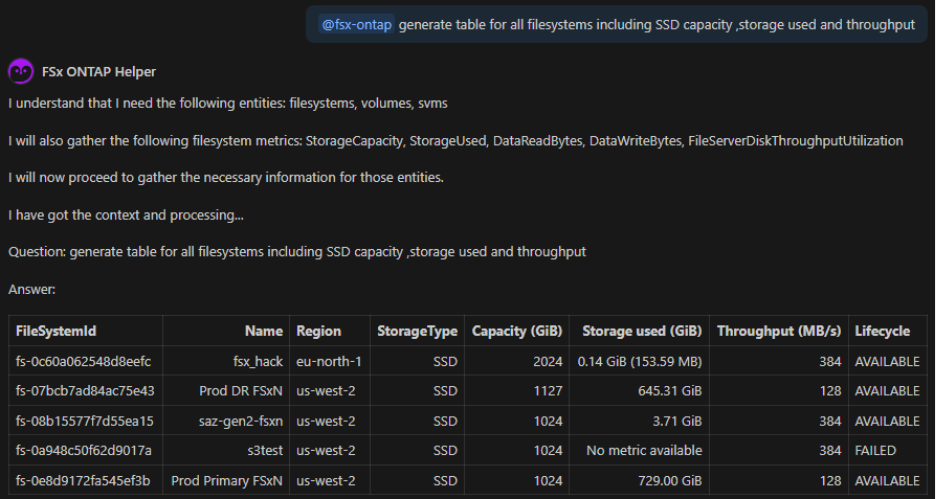
Step 3 (10 min): Finally, He uses FSx extension co-pilot integration to generate an organized report and contextualized code templates , keeping everything version-controlled and aligned with infrastructure-as-code. The same task that previously consumed most of a working day now fits into one focused 30-minute session.
What This Brings to Your Team
|
Aspect
|
Before
|
After
|
|
Inspection time
|
~8 hours across multiple tabs
|
~30 minutes in VS Code
|
|
Context switches
|
15+ console visits
|
Single workspace
|
|
Configuration accuracy
|
Manual spreadsheets (error-prone)
|
Automated, version-controlled
|
|
Engineer focus
|
Fragmented
|
Unified
|
For a team managing 20+ FSx file systems, this reclaims hundreds of engineer-hours annually—time redirected toward automation and innovation instead of portal navigation.
Key Capabilities
- Resource Browser: Hierarchical view of file systems, SVMs, and volumes
- Configuration Inspection: View capacity, throughput all in one place.
- Exportable Metadata: Version-control configurations alongside infrastructure-as-code
- Fast Audits: Compliance and snapshot coverage checks without console tabs
Learn more:


