
This site will enter Read Only mode on July 23 as we prepare to move to a new platform. You will still be able to view content, but posting and replying will be temporarily disabled.
We're excited to launch our new Community experience on July 30 and more information will follow soon.
Stay connected during the transition - Join our Discord community today.
Tech ONTAP Blogs
- Home
- :
- Blogs
- :
- Tech ONTAP Blogs
- :
- Simplifying Enterprise Deployments: The Power of OVA in NetApp Console
Tech ONTAP Blogs
Simplifying Enterprise Deployments: The Power of OVA in NetApp Console


NetApp Console is your single, secure gateway to everything NetApp. No more juggling multiple logins or interfaces—Console brings it all together in one intuitive dashboard. From orchestrating ONTAP data protection to ensuring resilience with NetApp Data Services, it’s designed to make your life easier.
To connect NetApp Console with your infrastructure, you need a Console agent. This agent acts as the secure bridge that lets you orchestrate storage solutions seamlessly—whether in AWS, Azure, Google Cloud, or your on-premises environment. It also enables you to tap into powerful data protection services, so your workloads stay resilient no matter where they run.
In today’s fast-paced IT environments, the ability to deploy secure, compliant, and easily managed agents is critical. NetApp Console’s adoption of the Open Virtual Appliance (OVA) format marks a significant leap forward in simplifying these operations, especially for organisations seeking to streamline their hybrid and cloud workflows.
Why OVA Matters
The OVA format is more than just a packaging standard—it’s a strategic enabler for IT teams. By delivering the NetApp Console agent as an OVA, NetApp removes many of the traditional pain points associated with agent deployment:
- Pre-configured Compatibility: The OVA is packaged with a qualified operating system and container runtime, eliminating the need for manual setup and figuring out matching the versions of OS and container run time so that they work in harmony.
- Rapid Deployment: IT teams can download the OVA directly from Console and deploy it in their vCenter environments, bypassing lengthy configuration cycles.
- Built-in Verification: During deployment, the OVA verifies access to required network endpoints, providing immediate feedback and helping teams resolve network access issues before they impact operations.
Best Practices for OVA Deployment
To maximise the benefits of OVA deployment, consider these practical steps:
- Leverage the Verification Workflow
Use the OVA’s built-in verification to ensure all necessary network endpoints are accessible. If issues arise, collaborate with your network team to update policies, then redeploy the OVA. - Utilise the Maintenance Interface
The agent OVA includes a maintenance interface for updating system and network configurations, running diagnostics, and managing daily operations. Make this part of your routine to keep agents healthy and compliant. - Plan for Regular Updates
NetApp provides periodic updates to the OVA, including OS and container platform enhancements. Stay informed about the release schedule and plan upgrades to maintain security and compliance without the hassle of tracking individual software versions.
Deploying NetApp Console Agents with OVA
Deploying the NetApp Console agent as an Open Virtual Appliance (OVA) is designed to streamline and secure your enterprise operations. Here’s a technical walkthrough to help IT teams achieve a smooth deployment and ongoing management.
Step-by-Step OVA Deployment
- Download the OVA Package
Access the NetApp Console and navigate to Administration > Agents > Deploy agent > On-premises.
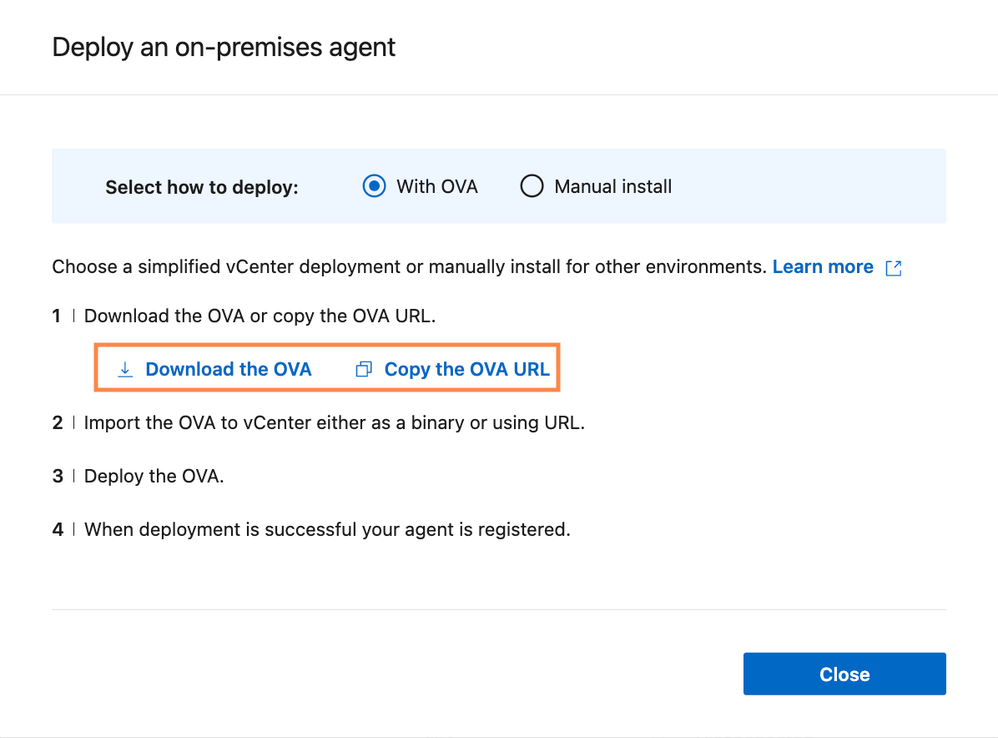
On the below screen, select the “With OVA” option. From here, you can either choose to directly download the OVA using the “Download the OVA” option or use the “Copy the OVA URL” option to copy the OVA URL and paste it in your browser to start the download.
Note: The OVA URL provided under the “Copy the OVA URL” option is intended solely for downloading the OVA package and must not be used during the OVA deployment process in vCenter.
- Prepare Your vCenter Environment
Verify that your vCenter infrastructure meets the minimum requirements for the OVA. This includes sufficient CPU, memory, storage, and network connectivity. For more details, refer:
https://docs.netapp.com/us-en/console-setup-admin/task-install-agent-on-prem-ova.html#review-console-agent-host-requirements
https://docs.netapp.com/us-en/console-setup-admin/task-install-agent-on-prem-ova.html#network-access-agent - Choose a method to deploy the OVA in vCenter
You can either first upload the agent OVA file to Content libraries in vCenter and deploy it from there, or choose to upload it from the local system at the time of deployment:
From the Content library:
- In the vSphere client, navigate to Content Libraries. In Content Libraries, you can choose to create a new content library for Agent or import an Agent OVA to an existing Content library.
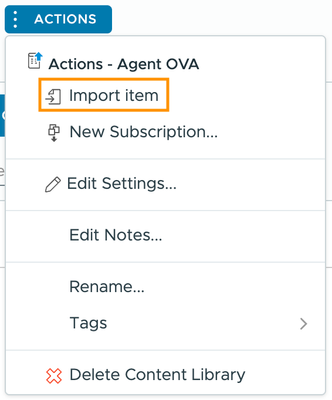
- To import the Agent OVA, click on ACTIONS > Import item
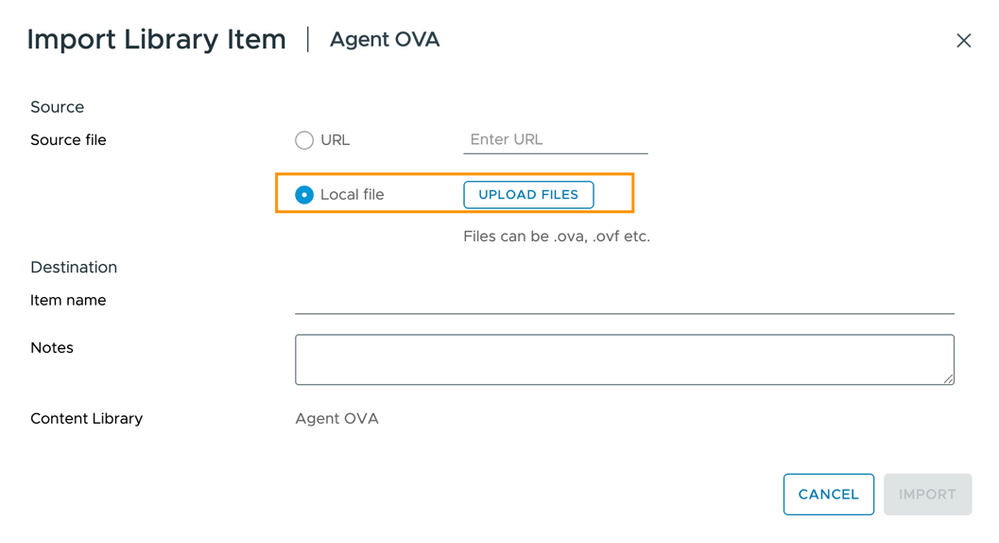
- On the Import Library Item page, select the Local file option and upload the OVA package downloaded in step 1.
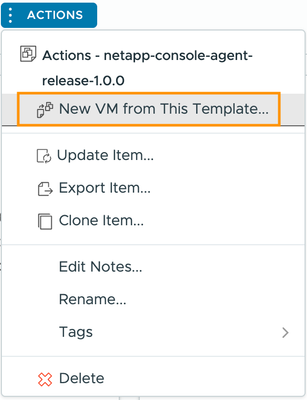
- Once the OVA is uploaded, select the OVA and under ACTIONS, click on “New VM from This Template”
- Follow the instructions in step 4 to deploy the Agent
From the Local system
- In the vSphere client, navigate to Inventory. Right-click on Cluster/Host where you want to deploy the Agent and click on “Deploy OVF Template”
- On the “Select an OVF Template” page, click on “Local file” and upload the Agent OVA file from your local system
- Follow the instructions in step 4 to deploy the Agent


- Deploy the OVA in vCenter
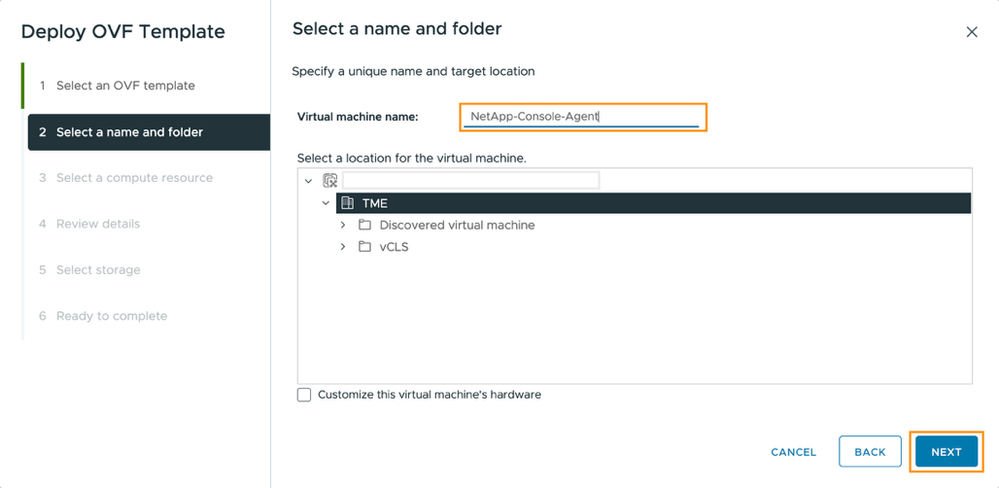
- If you have chosen to deploy the OVA from the local system, then for step 1 in the screen below, select the location of the OVA file on your local system and click on “UPLOAD FILES” as shown in the previous section. If you have chosen to deploy the OVA template from the Content Libraries, then you will directly have to provide details from step 2. Enter the Virtual machine name and select a folder where you want to create the agent VM:
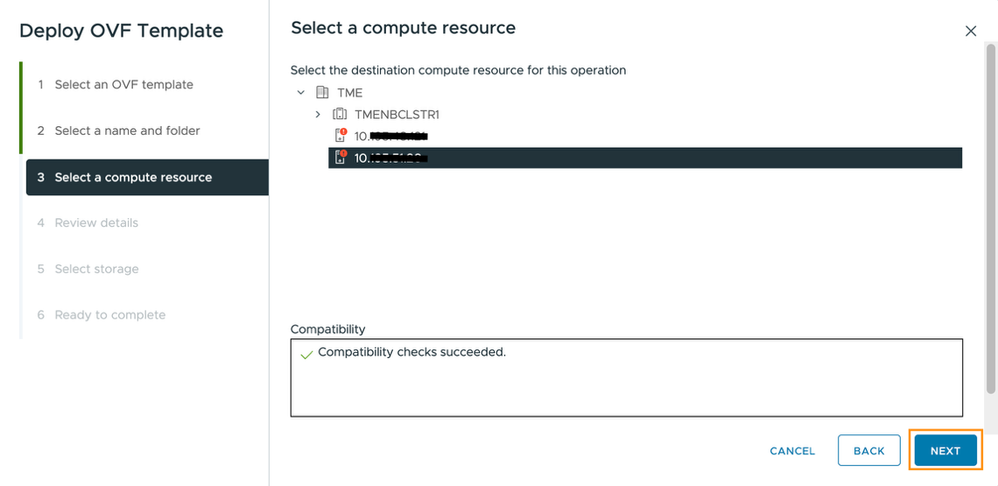
- On the “Select a compute resource” page, select the host where you want to create the agent VM
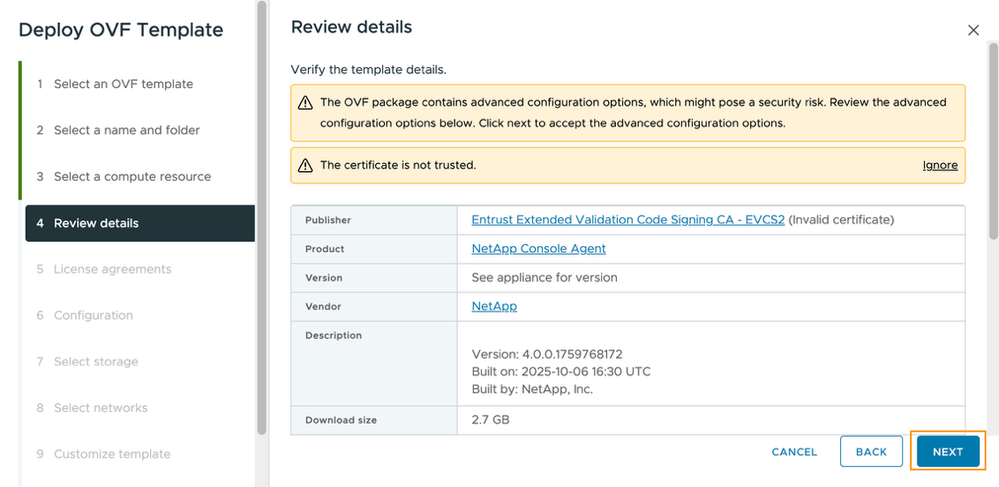
- On the “Review details” page, review the details of the OVA template. You will get a certificate warning “The certificate is not trusted” on the page. You can either choose to ignore the warning or import the .pem certificate under Home > Administration > Certificates > Certificate Management > Trusted Root in vSphere. Click Next:
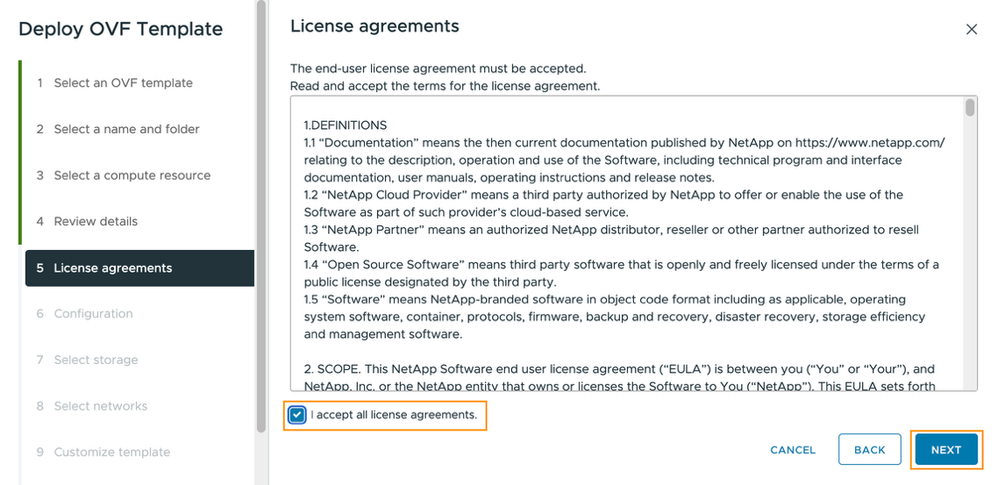
- On the “License agreements” page, read and accept the terms for the license agreement and check the box at the bottom of the page. Click Next:
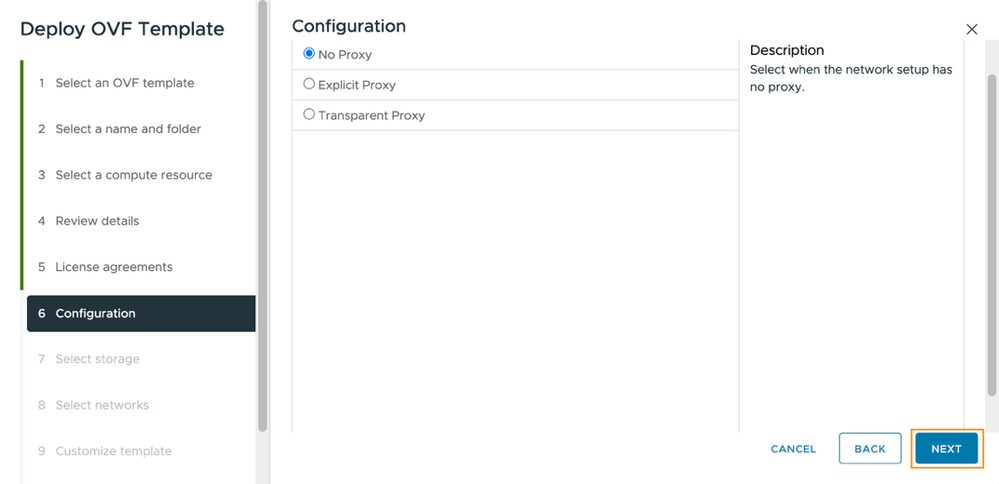
- On the “Configuration” page, select the Proxy type if you have proxy in your network setup, else select “No Proxy”. Click Next:
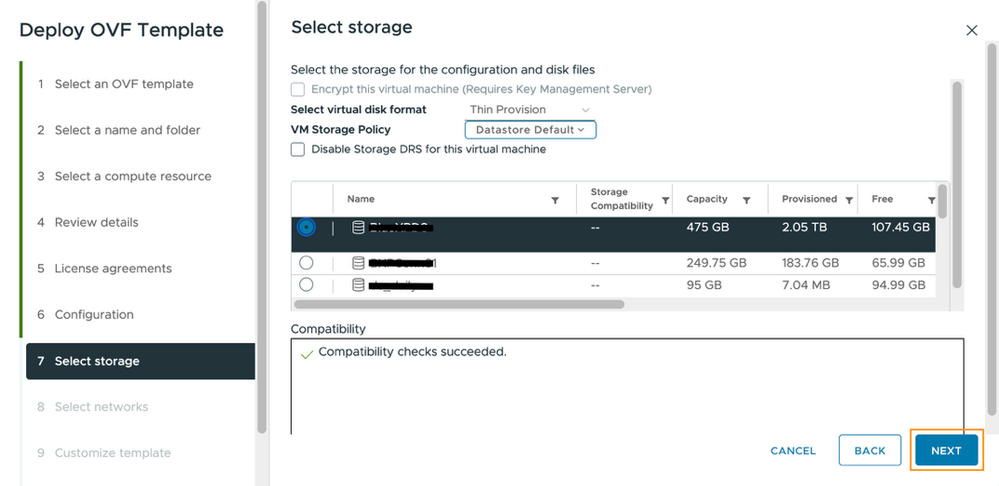
- On the “Select storage” page, select the storage where you want to create the machine. Click Next:
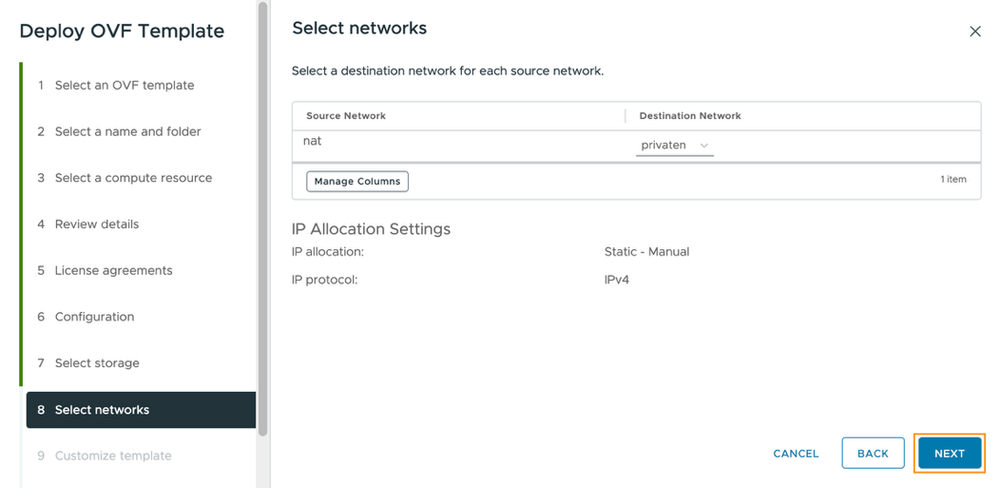
- On the “Select networks” page, select the network where you want to create the machine. Click Next:
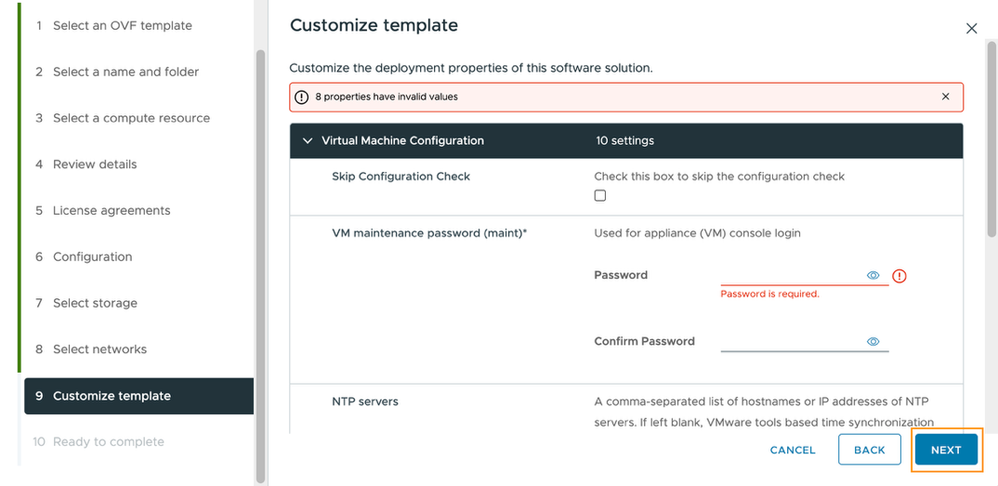
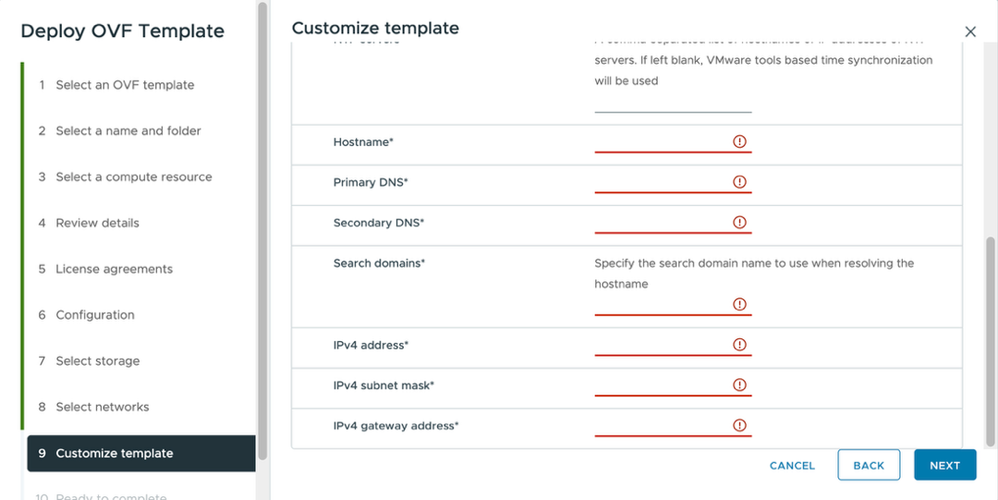
- On the “Customize template” page, enter the VM maintenance password (password for the “maint” user) - and other network details. Click Next:
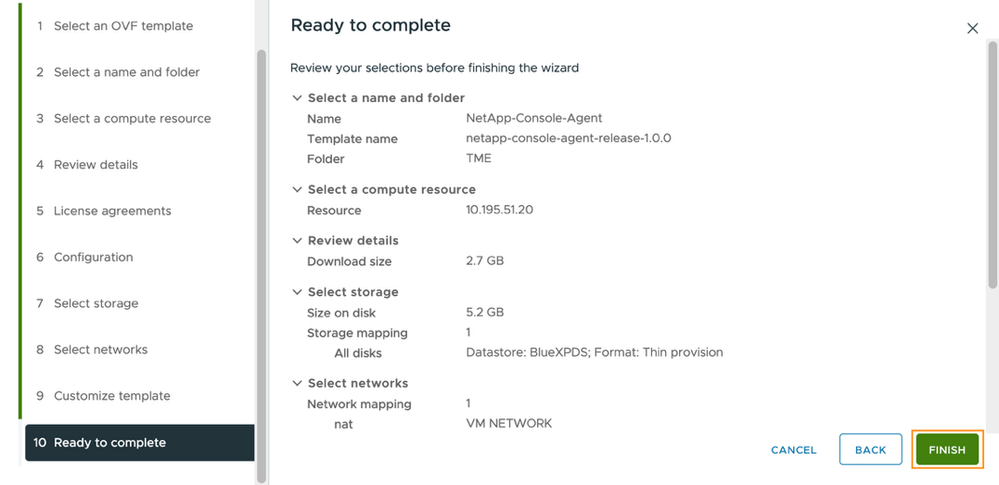
- On the “Ready to complete” page, verify all the details you have selected/entered before and click on Finish to start the OVA deployment.
- Power on the agent VM after the OVA is successfully deployed.
5. Once the agent is successfully deployed, register the agent with NetApp Console following the steps given in the below doc:
https://docs.netapp.com/us-en/console-setup-admin/task-install-agent-on-prem-ova.html#register-the-console-agent-with-netapp-console
Conclusion
With OVA-based deployment, setting up the agent is faster, simpler, and more secure, eliminating the usual configuration headaches and getting you up and running in minutes. By following these technical steps and best practices, IT teams can deploy and manage NetApp Console agents efficiently, with reduced friction and improved security. The OVA approach not only simplifies initial setup but also streamlines ongoing operations, allowing teams to focus on strategic initiatives.
The shift to OVA is just the beginning. As NetApp continues to evolve Console, expect further simplification of agent operations, more robust cloud deployment wizards, and enhanced guidance for hybrid environments. The goal: empower IT teams to focus on strategic initiatives rather than wrestling with deployment complexity.
For more details, refer to: https://docs.netapp.com/us-en/console-setup-admin/task-install-agent-on-prem-ova.html#prepare-to-install-the-console-agent
Related blogs:
NetApp Console: One secure, simplified management interface
NetApp Console: Your New Centralized, Simplified, Secure Management Solution
NetApp Console simplicity with agent OVA and wizard deployments