When it comes to cybersecurity, ransomware stands out as one of the most dangerous and relentless threats facing organizations today. Autonomous Ransomware Protection (ARP) elevates your defense strategy by providing a cutting-edge built-in capability to detect and mitigate potential attacks with precision. ARP does a solid job right out of the box, but how do you ensure you are using ARP in the most effective way to protect your data from ransomware attacks?
Welcome to the Insider’s Guide – breaking down ARP best practices in 5 simple steps.
From setting up alerts to fine-tuning detection parameters, we’ll explore how leveraging ARP with ONTAP 9 can improve your security posture while keeping false positives and noisy alerts at bay. Whether you're an IT professional securing enterprise data or building a ransomware-proof infrastructure, this guide simplifies the process.
- Setting Up ARP Alerts with Active IQ Unified Manager
Proactive alerting is your first line of defense. With Active IQ Unified Manager (AIQUM), setting up ARP alerts ensures your security team is notified about critical events, such as ransomware activity or abnormal file behaviors. AIQUM also indicates whether a workload is a good candidate for ARP or not as some workloads can be excessively noisy and are not good candidates for ARP.
Here’s how to get started:
- Log in to AIQUM and access the Event Management page.
- Enable alerts for specific events, including "Ransomware activities detected."
- Configure these alerts to forward notifications directly to your security team.
This setup ensures critical alerts are prioritized and cataloged. For example, the "Ransomware activities detected" event is particularly useful for identifying real threats, reducing unnecessary noise in your notifications. These alerts allow for immediate response when a potential ransomware attack is detected. For additional details and recommendations, refer to this technical article on AIQUM ARP alerts.
- Utilize ONTAP 9.14.1 and later for more granular ARP alerting
With the release of ONTAP 9.14.1, NetApp introduced two essential ARP-related events designed to enhance alert precision and indicate why an alert was created:
- arw.new.file.extn.seen – Notifies you when a new file extension appears in monitored volumes, enabling early investigation of suspicious changes.
- arw.snapshot.created – Alerts you when ARP-generated snapshots are created, offering insights into threats and system responses.
These events provide valuable context for both operational monitoring and incident response. For example:
- arw.new.file.extn.seen - Quickly flags unrecognized extensions, which could indicate malware activity.
- arw.snapshot.created - Tracks why ARP snapshots were created, helping you understand the triggers and severity.
Find out how to configure these alerts here.
- Understanding attack probabilities and key EMS events
One of ARP’s features is its probability-based attack detection. It categorizes threats as low or moderate probability based on file behaviors, entropy, and other criteria.
To view attack probabilities, run the following command to check a specific volume:
security anti-ransomware volume show -vserver <SVM_name> -volume <Volume_name>
For moderate-probability attacks, you'll see related EMS events like: “callhome.arw.activity.seen” – this indicates suspected ransomware events requiring immediate attention. This event is a solid indicator that a ransomware attack has occurred.
Low-probability attacks won’t generate EMS events and will allow the ARP created snapshot to naturally roll off after five days (default setting). The low probability event can be ignored and instead the focus should be on moderate for action points. Learn more about detection thresholds and attack probability in this knowledge base article.
- Generating a detailed ARP report after an attack
When ARP flags a moderate-probability attack in the system, generating a report can help your team analyze the event to get a better understanding of what files were encrypted and take action. To generate a report via CLI, use the following command:
security anti-ransomware volume attack generate-report -volume <affected volume> -dest-path <data SVM>:<shared volume hosted by the data SVM>/
The report will look something like this:
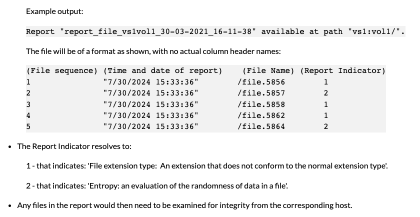
This report provides a detailed timeline of the incident, including the precise behaviors that triggered the alert. You can utilize it to inform your recovery behavior or share it with your internal security team for a deeper investigation into the activity. For more details, check out the report format here.
- Reducing false positives and noisy alerts
Noisy alerts are a common pain point for IT teams, especially in environments where large amounts of new files are frequently created. To address these workloads ARP offers customizable parameters to eliminate unnecessary false positives.
Mitigating File Extension-Driven Alerts
If your alerts are frequently triggered by new file extensions, disable "Monitor new file types" within the Configure Workload Characteristics settings within ONTAP System Manager. This adjustment ensures that detections are based on both file extensions and file entropy, reducing noise. By default, this is disabled for new volumes starting with ONTAP 9.14.1P7 onwards, making it easier for organizations to manage.
Minimizing Surge Alerts
Surges in file creation, renames, or deletions can also lead to false positives. This can be addressed by turning off surge monitoring in the Configure Workload Characteristics settings within System Manager. Particularly these settings:
- Monitor surges in file create operations
- Monitor surges in file delete operations
- Monitor surges in file rename operations
If noisy alerts persist, the recommendation is to test these changes on a single volume before applying them across the board.
NOTE: The ARP/AI detection model was significantly enhanced in ONTAP 9.16.1, achieving over 99% precision with less than 1% false positives. Upgrading to this release of ARP or later could further improve detection accuracy. Additionally, enhancements have been made that allow updating the ARP/AI model without upgrading the ONTAP version. These ARP/AI model package updates are available here: https://mysupport.netapp.com/site/tools/tool-eula/arp-ai
As of May 2026 the current ARP Security file version is 5.0 which requires the following versions of ONTAP 9 or later:
- 9.16.1P10 or later
- 9.17.1P3 or later
- 9.18.1 or later
- 9.19.1 or later
If you are still experiencing false positives or noisy alerts after deploying ARP Security file version 5.0 or later, this can occur because the workload is not suitable for ARP. To determine if the workload is suitable or not, be sure that you have enabled AIQUM ARP alerts for both the "Volume suitable for anti-ransomware monitoring (Active Mode)" and "Volume exhibits noisy anti-ransomware alerting" events as described in section 1 "Setting Up ARP Alerts with Active IQ Unified Manager" within this document.
The bottom line
Ransomware attacks are unavoidable, but with ARP, you can proactively detect and mitigate ransomware activity before it damages your data. Taking full advantage of the capabilities of ARP empowers your organization to confidently protect its digital assets.
Here are some key takeaways:
- Set up intelligent ARP alerts with Active IQ Unified Manager to rapidly identify and respond to real ransomware threats.
- Leverage the EMS events in ONTAP 9.14.1 and later for more granular information about why ARP generated alerts or snapshots.
- Generate a detailed ARP report using the CLI after an attack to assess damage and inform the recovery plan for actionable insights.
- Configure ARP attack detection parameters to reduce false positives and noisy alerts or upgrade ONTAP to 9.14.1P7 or later.
- Upgrade to ONTAP 9.16.1P10 or later using ARP/AI Security package 5.0 to leverage AI in ARP for the best experience in ransomware detection and minimizing false positive alerts.
Now that you’ve got the insider’s guide to ARP, it’s time to take the next step. Worried about ransomware attacks? Configure ARP today and keep your data safe from ever-evolving cyber threats.


