This site will enter Read Only mode on July 23 as we prepare to move to a new platform.
You will still be able to view content, but posting and replying will be temporarily disabled.
To learn more, please review the information in this blog post.
Microsoft Virtualization Discussions
- Home
- :
- Virtualization Environments
- :
- Microsoft Virtualization Discussions
- :
- Re: remote session - save file localy
Microsoft Virtualization Discussions
- Subscribe to RSS Feed
- Mark Topic as New
- Mark Topic as Read
- Float this Topic for Current User
- Bookmark
- Subscribe
- Mute
- Printer Friendly Page

- Mark as New
- Bookmark
- Subscribe
- Mute
- Subscribe to RSS Feed
- Permalink
- Report Inappropriate Content
I am running a remote session (Enter-PSSession) and would like to save the screen output (or Out-File) locally.
While in a remote session, it would only save the file on the remote computer:
[Win5]: PS C:\> Get-NaAggr | Out-File c:\aggr.txt
I'm looking for a way to save the remote session locally, without actually going to the remote computer, is that possible?
BTW, Start-Transcript doesn't work remotely
Cheers
Joel
Solved! See The Solution


- Mark as New
- Bookmark
- Subscribe
- Mute
- Subscribe to RSS Feed
- Permalink
- Report Inappropriate Content
Hello Joel.
You can use the Invoke-Command cmdlet and pass the scripts inside scriptblock and put the extracted value in a variable and perform operations on them.
PS C:\Windows\system32> $a = Invoke-Command -ComputerName scvmm2012sp1 -ScriptBlock { Get-WmiObject win32_computersystem }
PS C:\Windows\system32> $a
Domain : SaRC.com
Manufacturer : Microsoft Corporation
Model : Virtual Machine
Name : SCVMM2012SP1
PrimaryOwnerName : Windows User
TotalPhysicalMemory : 4294496256
PSComputerName : scvmm2012sp1
So in Your Case, it should look like.
PS C:\Windows\system32> $a = Invoke-Command -ComputerName Win5 -ScriptBlock { Get-NaAggr }
PS C:\Windows\system32> $a | Out-File c:\aggr.txt
- Mark as New
- Bookmark
- Subscribe
- Mute
- Subscribe to RSS Feed
- Permalink
- Report Inappropriate Content
Hello Joel.
You can use the Invoke-Command cmdlet and pass the scripts inside scriptblock and put the extracted value in a variable and perform operations on them.
PS C:\Windows\system32> $a = Invoke-Command -ComputerName scvmm2012sp1 -ScriptBlock { Get-WmiObject win32_computersystem }
PS C:\Windows\system32> $a
Domain : SaRC.com
Manufacturer : Microsoft Corporation
Model : Virtual Machine
Name : SCVMM2012SP1
PrimaryOwnerName : Windows User
TotalPhysicalMemory : 4294496256
PSComputerName : scvmm2012sp1
So in Your Case, it should look like.
PS C:\Windows\system32> $a = Invoke-Command -ComputerName Win5 -ScriptBlock { Get-NaAggr }
PS C:\Windows\system32> $a | Out-File c:\aggr.txt
- Mark as New
- Bookmark
- Subscribe
- Mute
- Subscribe to RSS Feed
- Permalink
- Report Inappropriate Content
Cool
What if I need to run this on the remote machine and save a report locally:
Import-Module DataOntap
$filer = Read-Host "This will show volumes more than 85% full. Please enter the filer name"
$user = "Enter the username"
Connect-NaController $filer -Credential $user
Get-NaVol | select name,PercentageUsed,Aggregate,SnapshotPercentReserved,SpaceReserveEnabled,MirrorStatus | where { $_.PercentageUsed -gt 85 }
- Mark as New
- Bookmark
- Subscribe
- Mute
- Subscribe to RSS Feed
- Permalink
- Report Inappropriate Content
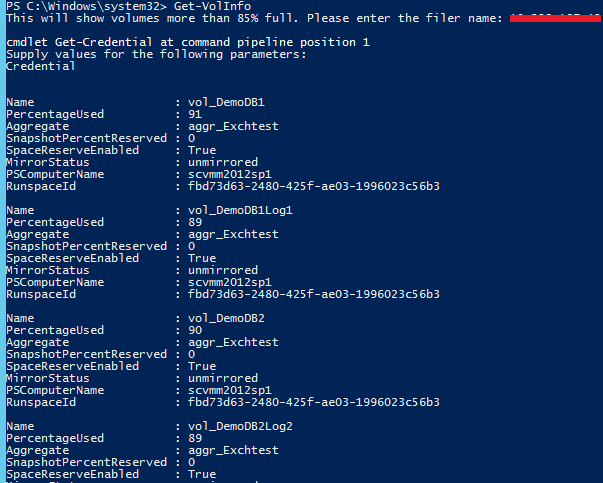
Hello, Here's a function i wrote which can be used to attain this information.
Here im calling the local variables in a remote powershell session using "$using" which is a new feature in PowerShell v3
function Get-VolInfo {
$filer = Read-Host "This will show volumes more than 85% full. Please enter the filer name"
$user = Get-Credential
$a = Invoke-Command -ComputerName Win5 -ScriptBlock {
Import-Module DataOntap
$new = Connect-NaController $using:filer -Credential $using:user
Get-NaVol | select name,PercentageUsed,Aggregate,SnapshotPercentReserved,SpaceReserveEnabled,MirrorStatus | where { $_.PercentageUsed -gt 85 }
}
return $a
}
Just copy paste the above function to your powershell window and invoke the function by calling it as below, it should give you the required information.
Get-VolInfo
- Mark as New
- Bookmark
- Subscribe
- Mute
- Subscribe to RSS Feed
- Permalink
- Report Inappropriate Content
cool
Is there a way to save this function so that every time I run Get-VolInfo it will call it?
- what does the 'return' do?
- can you put it in a table (not list)?
Thanks
- Mark as New
- Bookmark
- Subscribe
- Mute
- Subscribe to RSS Feed
- Permalink
- Report Inappropriate Content
Hello Joel,
You can copy paste the function and save it in a ps1 file, and add it to your powershell profile, so that everytime you open up powershell it autoloads the function.
Check this link http://windowsitpro.com/powershell/save-your-powershell-code-profile-and-script-files
- Mark as New
- Bookmark
- Subscribe
- Mute
- Subscribe to RSS Feed
- Permalink
- Report Inappropriate Content
Worked!
I saved it as .psm1 file and then I just need to import that:
Import-Module c:\scripts\getvolinfo.psm1
We also had to Enable-PSRemoting
- what does the 'return' do?
- can you put it in a table (not list)?
- Mark as New
- Bookmark
- Subscribe
- Mute
- Subscribe to RSS Feed
- Permalink
- Report Inappropriate Content
Hello,
To Change the view from Lists to Tables use ft (format-table)
Just put an ft * to the end and you should see the result in tabular format.
where { $_.PercentageUsed -gt 85 } | ft *
Also return return's the output from function.